
Make sure not to leak your private information while browsing Pinterest
[Disclaimer: This guide is written on the basis of my understanding on Pinterest Policies. If you find any factual error I will be happy to correct in future versions]
There is something uniquely soothing about the way we use Pinterest. It is our digital sanctuary, a sprawling landscape of “someday” projects and “maybe” aspirations. It’s where we go to curate the aesthetic of a life we are currently building—the minimalist kitchen we’ll eventually renovate, the travel destinations we’re secretly dreaming of, and the cozy corner of the home we want to create for ourselves.
Because we spend so much time in this space, it’s easy to forget that it isn’t just a personal scrapbook; it is a sophisticated ecosystem built on data. When we pin a photo of a specific linen sofa or a Mediterranean villa, we aren’t just “saving a picture.” We are providing data points. We are telling an algorithm about our tastes, our socioeconomic aspirations, and our future plans.
Lately, I’ve been thinking a lot about how can we enjoy the magic of the platform without feeling like we are being watched by a silent observer who knows our every desire? The truth is, Pinterest provides us with tools to manage our privacy. However, these settings are often buried in menus, written in “legalese” that feels more like a chore to read than a protection to enjoy.
If you’ve ever felt that slight prickle of unease—that moment when you think about a specific hobby and suddenly see an ad for it across three different apps—you are noticing the invisible threads of data sharing. Today, I want to take you through these settings with a level of nuance and clarity that actually feels helpful. Let’s look at how you can curate your privacy as intentionally as you curate your boards.
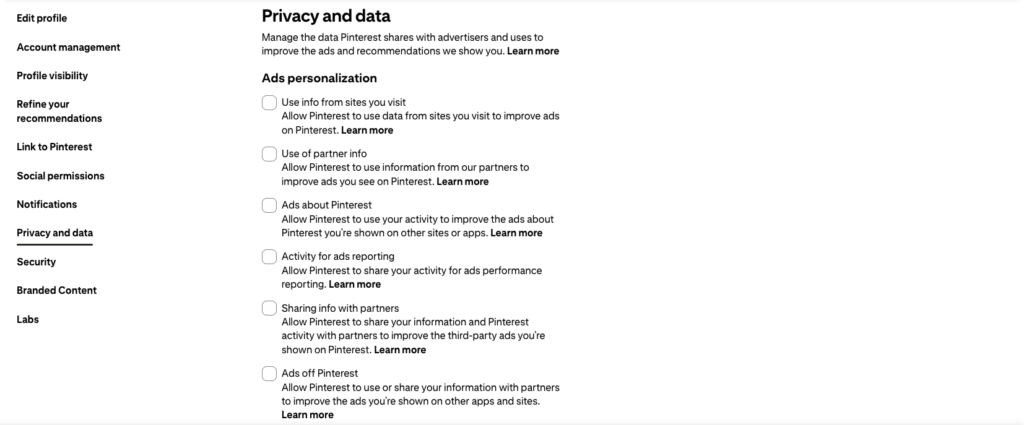
You can access these options from your settings and then going to Privacy and Data options.
Understanding the Architecture of Data: A Deep Dive
To navigate your privacy, we first have to understand what Pinterest is actually doing with the information it collects. It’s not just about “seeing what you like.” It’s about a complex web of partnerships, tracking tags, and behavioral analysis. Let’s break down the specific options provided by Pinterest, translated into plain, practical language.
1. Ads Personalization: The “Echo Chamber” Effect
The Setting: Use info from sites you visit / Ads Personalization
This is perhaps the most common way our browsing habits are synthesized. Pinterest wants to know what you do when you aren’t on their app. They want to see the blogs you read, the news sites you frequent, and the boutiques you browse.
What it means in simple language:
If you turn this off, Pinterest stops looking at your “off-platform” behavior to decide what ads to show you. It limits their ability to build a comprehensive profile of your life outside of their own app.
An example to elucidate:
Imagine you spend an afternoon reading a blog about sustainable gardening. If this setting is on, Pinterest sees that activity. The next time you open the app, your feed might be saturated with ads for organic fertilizers or high-end gardening tools. If you turn it off, Pinterest will still show you ads, but they will be based primarily on what you do within Pinterest (your pins and searches), rather than what you did on that random blog three hours ago.
2. Use of Partner Info: The “Group Project”
The Setting: Use of partner info
This is a bit more nuanced. This isn’t just about what you do; it’s about what other companies tell Pinterest about you.
What it means in simple language:
This allows Pinterest to take data provided by their business partners and use it to refine the advertisements you see. It’s a way of “cross-pollinating” information from other industries.
An example to elucidate:
Think about a large retail brand. They might have a massive list of customer emails. They can share that list with Pinterest. If their customers are also on Pinterest, the brand can tell Pinterest, “Hey, these people are our fans.” Pinterest then uses that information to ensure those people see more of that brand’s content. By opting out, you are essentially telling Pinterest, “I don’t want my identity merged with the data your partners are sending you.”
3. Ads about Pinterest: The “Publicity” Factor
The Setting: Allow Pinterest to use your activity to improve the ads about Pinterest you’re shown on other sites or apps.
This one feels a bit different because it’s about how Pinterest promotes itself, not how it sells other products to you.
What it means in simple language:
Pinterest wants to use your specific behavior to figure out how to sell you on using more of Pinterest. They want to show you ads for Pinterest features on other websites (like Facebook or news sites) that are tailored to your specific interests.
An example to elucidate:
If you spend a lot of time pinning “DIY Craft” content, Pinterest might notice. They might then place an ad on a different website that says, “Discover more DIY projects on Pinterest,” specifically showing you a craft-themed ad. If you turn this off, you’re basically saying, “I’m already here; you don’t need to follow me around the rest of the internet trying to sell me on the platform.”
4. Activity for Ads Reporting: The “Data for the Suits”
The Setting: Allow Pinterest to share your activity for ads performance reporting.
This is one of the more technical aspects of the platform. It’s less about what you see and more about how Pinterest proves its value to the companies paying for ads.
What it means in simple language:
This allows Pinterest to share anonymous, aggregated data with advertisers to prove that their ads are actually working. It helps them say, “Look, 5,000 people saw this ad for a sofa and clicked on it.”
An example to elucidate:
If a furniture company pays for an ad, they want to know if it’s a good investment. By allowing this, you are consenting to be part of the “math” that helps those companies decide how to spend their marketing budgets. While it’s usually anonymous, it is still a piece of your digital footprint being used for corporate reporting.
5. Sharing info with Partners: The “Third-Party Exchange”
The Setting: Allow Pinterest to share your information and Pinterest activity with partners to improve the third-party ads you’re shown on Pinterest.
This is a significant one for privacy-conscious users. It involves the active movement of your data to external entities.
What it means in simple language:
This is the “sharing” part. It means Pinterest is giving your activity data to their partners so that the ads inside the Pinterest app can be more “targeted.”
An example to elucidate:
This is often where the “Save button” and “Pinterest widgets” come into play. If you visit a website that has a Pinterest “Save” button and you click it, Pinterest now knows you were on that specific site. If this setting is on, Pinterest may share that information with partners to ensure that the very next ad you see on Pinterest is for that exact product.
Note: Pinterest does have protections here. If you are under 16, or live in the EEA, UK, or Switzerland, they generally do not share your data with these partners.
6. Ads off Pinterest: The “Follow Me Home” Option
The Setting: Allow Pinterest to use or share your information with partners to improve the ads you’re shown on other apps and sites.
This is the ultimate “reach” of the platform’s data. This is what creates that “haunted” feeling of seeing an ad on Instagram or a news app for something you only looked at on Pinterest.
What it means in simple language:
This is the permission for Pinterest to take your “Pinterest personality” and export it to the rest of the internet. It allows them to share your interests with partners who then show you ads on completely different platforms.
An example to elucidate:
You spend an evening pinning different styles of “Bohemian Wedding” decor. Because this setting is on, Pinterest shares that interest with a network of advertisers. The next day, while you are scrolling through a news app or a weather app, you see an ad for a “Boho” floral arrangement. You might think, “How did they know?” The answer is this setting. Turning it off creates a “wall” around your Pinterest activity.
7. GenAI: Training the Future
The Setting: Use your data to train Pinterest Canvas
This is the newest and perhaps most complex addition to the privacy menu. As we enter the era of Generative AI, every company wants to know if they can use your content to “teach” their robots.
What it means in simple language:
By allowing this, you are giving Pinterest permission to use your pins, your boards, and your aesthetic preferences to help train their AI models.
An example to elucidate:
If you have a very specific aesthetic—perhaps you’ve curated a board of 500 images of “Moody Forest Cabin Interiors”—Pinterest could use those images to teach its AI what a “Moody Forest Cabin” looks like. This helps their AI generate new images or ideas for other users. If you value the uniqueness of your curation and don’t want it used as “training fodder,” you may want to opt out of this.
8. Request and Delete: The “Clean Slate”
The Setting: Request your data / Delete your data and account
These are your “nuclear options,” and they are incredibly important for long-term digital hygiene.
What it means in simple language:
“Request your data” is a way to see exactly what they know about you. They will send you a file (via a third party called SendSafely) containing everything they’ve collected. “Delete your data” is the way to wipe the slate clean.
An example to elucidate:
If you’re curious about how much the “Beast” knows, you can request your data. You might be surprised to see the sheer volume of location data, search history, and click patterns they’ve archived. If you decide you want to move on from the platform entirely, the delete option ensures that your “digital home” is dismantled and removed from their active servers.
How to Navigate These Choices: A Strategy for the Mindful User
Now that we’ve decoded the menu, how do we actually apply this to our daily lives? When we look at these options, it can feel overwhelming. Do we turn everything off? If we do, will the app still work? Will we lose the “magic” of the personalized feed?
The goal isn’t to become a ghost in the machine; it’s to be a conscious consumer. Here is how I suggest we approach these settings based on how much “privacy friction” you are comfortable with.
The “Balanced” Approach (For the Casual Browser)
If you love Pinterest and want the platform to stay relevant to your interests, but you want to stop the “creepy” feeling of being followed across the web, I recommend the following:
- Keep “Ads Personalization” ON: This ensures that when you do see ads, they are actually useful to you. It’s better to see an ad for a chair you actually like than a random ad for a product you have zero interest in.
- Turn OFF “Ads off Pinterest”: This is the single most effective way to stop your Pinterest activity from “leaking” into your other apps. It keeps your “secret” interests on the platform where you chose to share them.
- Turn OFF “GenAI”: Unless you are a creator who specifically wants your aesthetic to contribute to the evolution of AI, there is very little reason to opt-in to this. Your taste is yours.
The “Privacy First” Approach (For the Protective Browser)
If you are someone who is deeply concerned about data harvesting and you want to limit Pinterest’s reach as much as humanly possible, you should take the more rigorous route:
- Turn OFF “Ads Personalization”: This forces Pinterest to show you “generic” ads rather than ads based on your browsing history.
- Turn OFF “Use of Partner Info”: This prevents them from merging your data with the lists they get from other corporations.
- Turn OFF “Sharing info with Partners”: This cuts the cord on the “Save button” tracking and third-party data sharing.
- Turn OFF “Ads off Pinterest”: Again, this prevents the “stalker” effect on other sites.
- Turn OFF “GenAI”: This ensures your boards aren’t used for training models.
A Final Thought on Digital Intentionality
We often think of privacy as something we “lose,” but it’s actually something we “manage.” Every time you click “Save” on a beautiful image, you are making a tiny contribution to a massive data lake. That is the price of the “free” internet, but it doesn’t mean you have to give away the keys to your entire house.
By taking ten minutes to go through these settings, you are performing a bit of “digital housekeeping.” – looking at the “junk drawer” of your data and deciding what belongs there and what doesn’t.
Think of it as setting the boundaries for your digital home. You can still invite people in, you can still decorate the walls, and you can still find inspiration in every corner. But you get to decide who has a key, who can see your “private” rooms, and what parts of your life are for public consumption versus private reflection.
So, the next time you find that perfect pin of a rainy-day library or a perfectly organized pantry, take a moment to appreciate the inspiration. And then, take a moment to ensure that the way you’re finding that inspiration is on your own terms.
- 10 Ways to Reclaim Your Brain from YouTube Addiction and Take Back Your Life
- Why Social Media is Becoming a Minefield-and this time Instagram is feeling the heat of Indian regulators
- How to Reclaim Your Privacy on Pinterest
- A Friendly Chat About How To Be Mindful While Using Pinterest
- Back in Action: 3 Simple Strategies to Master Consistency (Even When Life Gets in the Way)